 Opto-Mization File Upload Tool
Purpose
This application allows you to upload .CSV file exports from Jane. The data is stripped of highly sensitive data (such as health numbers), filtered, and appended to a Google Sheet, where it can be consumed by the Opto-mization data dashboard. No data is stored on this server.
How to use
Step 1: Export the data from Jane
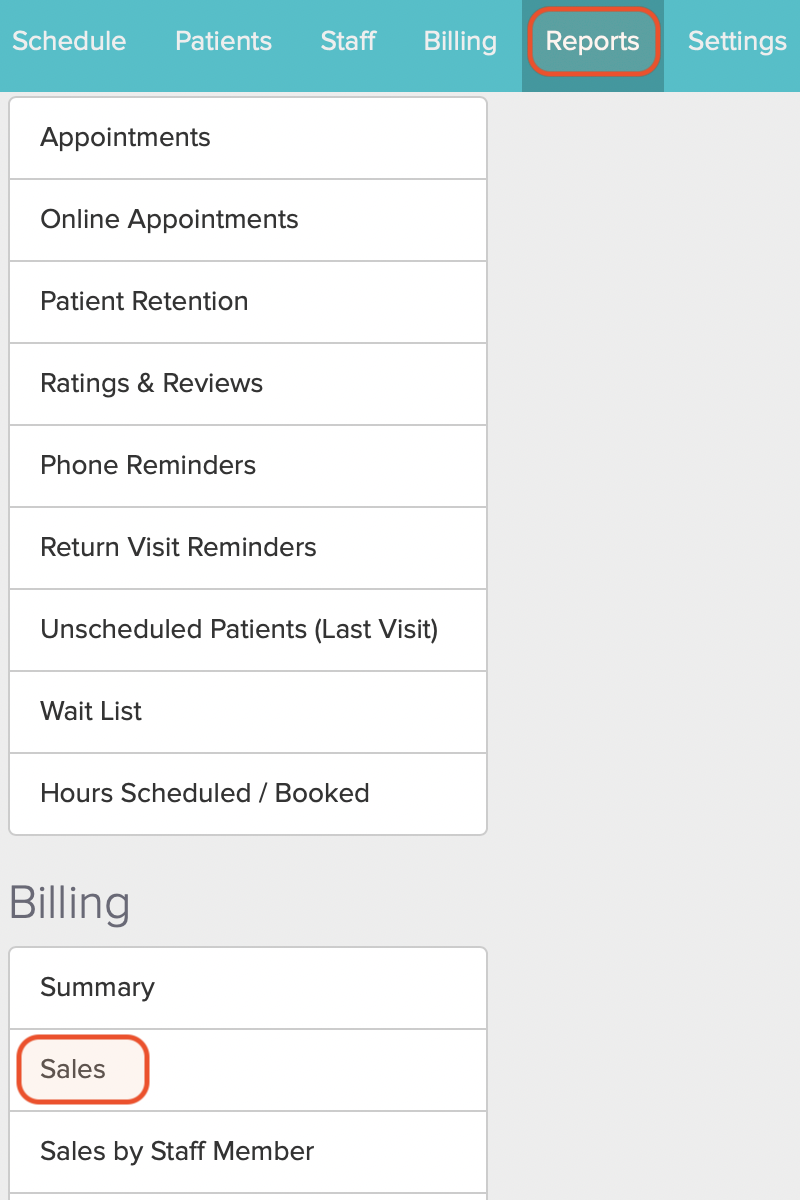
In Jane, click on the Reports tab in the top navigation. Then, select the Sales report on the left navigation panel.
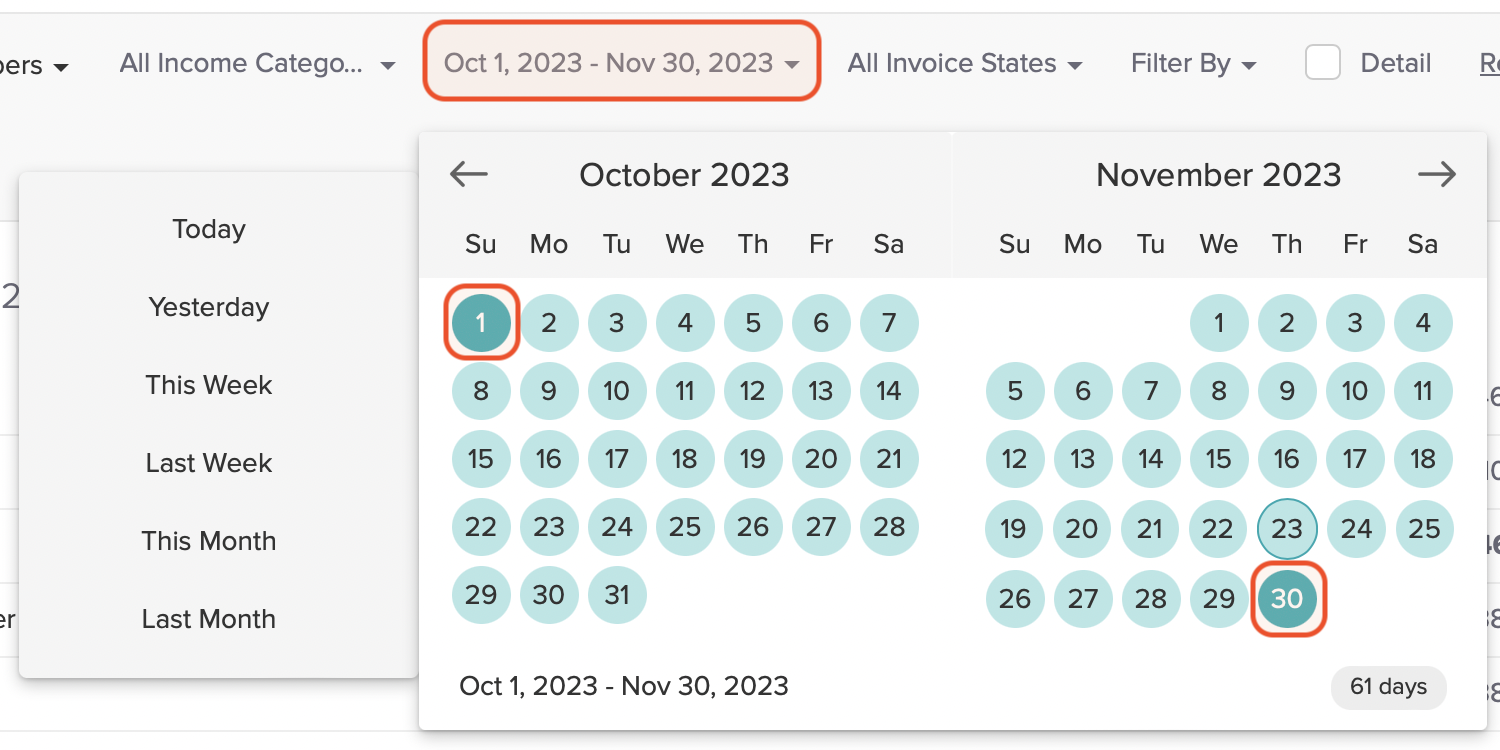
Ensure you set the date range for the report to the previous two full months.
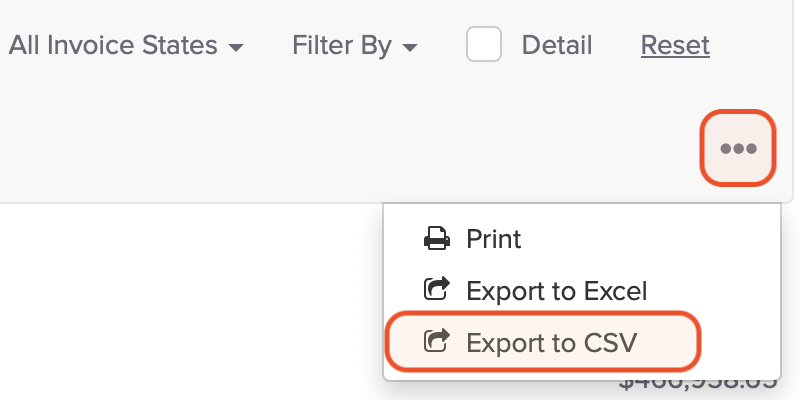
Then, click the three dots (•••) menu button, and click Export to CSV.
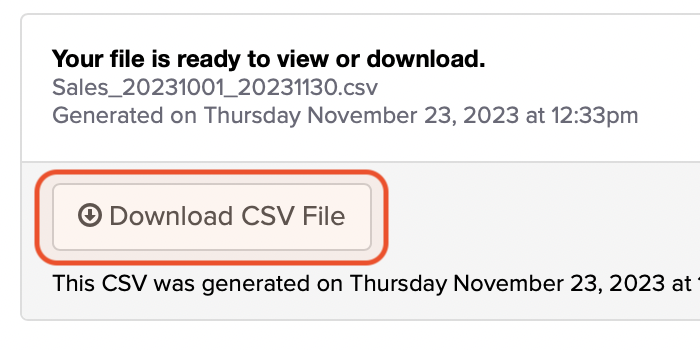
Jane will take a few seconds to generate the CSV report. When the report is ready, click the Download CSV File button.
Repeat these steps to generate the Patients report. However, in the case of the Patients report, we want to set the date range to the entire possible range. (You can use the Reset link on the menu to do this.)
Step 2: Upload the files
Use the Upload patient data and Upload sales data links on this site to upload each of the CSV files you have generated.
The application will process the files and update the Google Sheet backing the Opto-mization data dashboard.